
As an Amazon Influencer, we earn from qualifying purchases you might make if you click any of the links or buttons on this page.
Last reviewed: August 17, 2026
AM5 motherboard shopping becomes much easier when you separate CPU compatibility from motherboard features.
A Ryzen processor does not become faster simply because you move from B850 to X870E.
The higher chipsets primarily buy you more PCIe connectivity, more high-speed I/O and—in the case of X870 and X870E—USB4 as a standard platform feature.
For a normal gaming PC with one graphics card and a few SSDs, B850 is usually the place I would start.
The AM5 motherboards I would actually shortlist
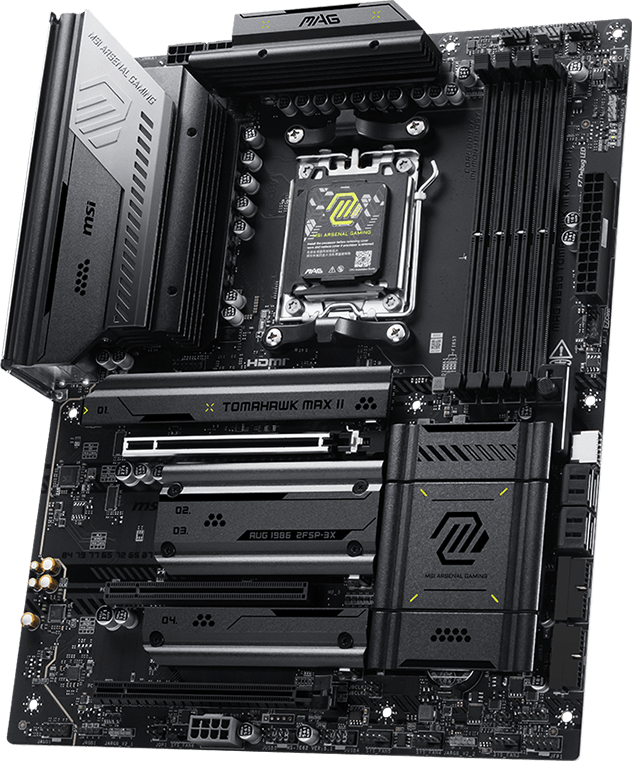
MSI MAG B850 TOMAHAWK MAX WIFI II
The board I would start with for a conventional full-size Ryzen gaming PC before spending more on X870.
- 4 M.2 slots including two Gen5 x4 positions
- PCIe 5.0 x16, 5GbE and Wi-Fi 7
- Limitation: no USB4
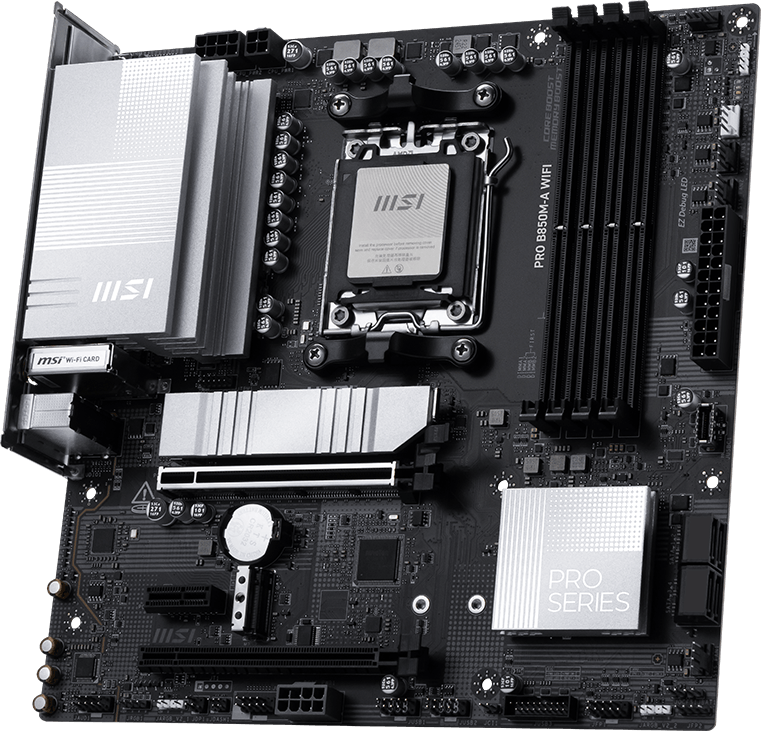
MSI PRO B850M-A WIFI
The sensible Micro-ATX option when two NVMe drives are enough and you would rather put more money into the CPU or GPU.
- Gen5 GPU + Gen5 primary M.2
- 5GbE and Wi-Fi 7
- Limitation: only two M.2 slots and no USB4

MSI MAG X870 TOMAHAWK WIFI
The step-up board when USB4 and additional high-speed connectivity are requirements rather than specification-sheet extras.
- 4 M.2 slots, two Gen5 + dual USB4
- 5GbE, Wi-Fi 7 and ALC4080 audio
- Limitation: M.2_2 shares bandwidth with USB4
ASUS ProArt X870E-CREATOR WIFI
Buy it when 10Gb networking, dual USB4 and workstation expansion directly improve your workflow.
- 10GbE + 2.5GbE, Wi-Fi 7 and dual USB4
- 4 M.2 slots + serious PCIe expansion
- Limitation: expensive overkill for an ordinary one-GPU gaming PC
Compare the best AM5 motherboards
Swipe → to see the full comparison
| Motherboard | Chipset | Size | M.2 | Networking | USB4 | Best for | Check |
|---|---|---|---|---|---|---|---|
| B850 TOMAHAWK MAX WIFI II | B850 | ATX |
4 2 × Gen5 |
5GbE Wi-Fi 7 |
No | Most AM5 builds | |
| PRO B850M-A WIFI | B850 | Micro-ATX |
2 1 × Gen5 |
5GbE Wi-Fi 7 |
No | Compact/value build | |
| X870 TOMAHAWK WIFI | X870 | ATX |
4 2 × Gen5 |
5GbE Wi-Fi 7 |
2 × 40Gbps | USB4 / more I/O | |
| ProArt X870E-CREATOR | X870E | ATX | 4 |
10GbE + 2.5GbE Wi-Fi 7 |
2 × 40Gbps | Creator workstation |
B840 vs B850 vs X870 vs X870E
The easiest way to choose an AM5 motherboard is to choose the lowest chipset tier that already provides the connections you need.
Swipe → to see the full chipset comparison
| Chipset | Graphics baseline | NVMe baseline | Total / Gen5 usable lanes | CPU OC | EXPO | USB4 | Best use |
|---|---|---|---|---|---|---|---|
| B840 | PCIe 4.0 x16 | PCIe 4.0 x4 | 34 / 0 | No | Yes | Optional | Entry-level AM5 |
| B850 | PCIe 4.0 baseline* | PCIe 5.0 x4 | 36 / 4 | Yes | Yes | Optional | Best default for most builds |
| X870 | PCIe 5.0 x16 / x8+x8 | PCIe 5.0 x4 | 36 / 24 | Yes | Yes | Standard | USB4 / high-speed I/O |
| X870E | PCIe 5.0 x16 / x8+x8 | PCIe 5.0 x4 | 44 / 24 | Yes | Yes | Standard | Heavy expansion / workstation |
*B850’s AMD platform baseline lists PCIe 4.0 graphics, but individual motherboard manufacturers can expose PCIe 5.0 x16 graphics connectivity from a compatible Ryzen CPU. Always check the exact board specification.
Why B850 is the AM5 chipset I would start with
B850 sits at the point where most meaningful AM5 restrictions disappear.
You retain Ryzen CPU overclocking, AMD EXPO memory overclocking, Gen5 NVMe support and enough platform connectivity for a strong gaming or general-purpose PC.
Individual B850 boards can also go beyond AMD’s minimum platform specification.
The B850 Tomahawk MAX WiFi II is a good example. With Ryzen 9000 or 7000, MSI exposes a PCIe 5.0 x16 graphics connection plus two CPU-connected Gen5 x4 M.2 positions.
In other words, you should not assume that buying X870 is necessary simply because you want Gen5 graphics or multiple Gen5 SSD connections.
For most gaming PCs, B850 is enough motherboard
If your build contains one GPU, two to four SSDs, standard USB peripherals and ordinary home networking, a good B850 board can provide everything that affects day-to-day use.
When X870 is worth paying for
USB4 is the clearest reason.
AMD makes USB4 standard on X870, while it remains optional lower in the chipset stack.
That matters with compatible high-speed external SSDs, docks, displays and professional peripherals.
X870 also establishes a much larger Gen5 lane allocation at the platform level than B850.
What it does not do is make the same Ryzen processor inherently faster in games.
Do not buy X870 just because you bought an expensive CPU
A Ryzen 7 X3D or Ryzen 9 processor does not automatically require X870.
Buy X870 when its I/O solves a requirement in the rest of your PC.
When X870E actually makes sense
X870E is primarily about expansion.
AMD lists up to 44 usable PCIe lanes compared with 36 on X870, while both provide up to 24 Gen5 lanes.
That larger expansion budget becomes useful for workstations with several high-speed devices rather than ordinary gaming PCs.
The ProArt X870E-CREATOR demonstrates the correct use case: 10Gb Ethernet, a second 2.5Gb Ethernet connection, dual USB4, four M.2 positions and substantial PCIe expansion.
Those features can materially improve a workstation connected to a fast NAS and multiple high-bandwidth devices.
They provide very little benefit to a gaming PC with one GPU, two SSDs and a 1Gb home network.
The four AM5 motherboard picks in detail
1. MSI MAG B850 TOMAHAWK MAX WIFI II
This is the AM5 motherboard I would use as the reference point for a new full-size Ryzen gaming build.
It gives you four M.2 positions without forcing you into X870.
With Ryzen 9000 and 7000 desktop processors, the first two M.2 positions can operate at PCIe 5.0 x4.
A third chipset-connected slot operates at up to Gen4 x2 and the fourth at Gen4 x4.
You also retain four SATA connectors.
The graphics slot supports PCIe 5.0 x16 with Ryzen 9000 and 7000 desktop processors.
Networking is unusually strong for a mainstream board: 5Gb Ethernet plus full Wi-Fi 7.
MSI also uses ALC4080 audio and provides rear Clear CMOS and Flash BIOS controls.
The biggest omission compared with X870 is USB4.
If you do not own USB4 hardware, that is often exactly the kind of feature worth giving up to keep the motherboard budget sensible.
One lane-sharing detail to know
Installing an SSD in M2_3 reduces the lower PCIe 4.0 expansion slot to x2.
MSI allows the lower slot to operate at x4 through BIOS, but doing so disables M2_3. This is unlikely to matter in a normal one-GPU gaming build but matters when you plan to populate almost everything.
Buy it if: you want a full-size AM5 board with excellent storage, networking and upgrade headroom without paying for USB4.
Skip it if: USB4 is a real requirement or two onboard SSDs are already enough.
2. MSI PRO B850M-A WIFI
The PRO B850M-A is the reminder that you do not need to make the motherboard expensive simply because the CPU is fast.
With Ryzen 9000 or 7000, MSI gives the main graphics slot a PCIe 5.0 x16 connection.
The primary M.2 position is PCIe 5.0 x4 and the second is PCIe 4.0 x4.
You retain four SATA ports, four DDR5 memory slots, 5Gb Ethernet and Wi-Fi 7.
Rear I/O is also better than the simple PRO branding might suggest, with several 10Gbps USB ports, USB-C, Clear CMOS and Flash BIOS.
What you give up is mostly expansion: two M.2 drives instead of four, fewer usable slots around a large GPU and no USB4.
If your system has one boot SSD and one large game/storage drive, that can be a very small list of sacrifices.
Buy it if: Micro-ATX fits the case, two NVMe drives are enough and you want to maximize the CPU/GPU budget.
Skip it if: you expect to add three or four onboard NVMe drives or several PCIe expansion cards.
3. MSI MAG X870 TOMAHAWK WIFI
The X870 Tomahawk is where I would move when USB4 changes from “nice to have” to part of the actual device list.
Like the B850 Tomahawk II, it gives you four M.2 positions.
The first two can operate at Gen5 x4 with Ryzen 9000 and 7000, while the chipset supplies another Gen4 x4 position and a Gen4 x2 slot.
Networking remains 5Gb Ethernet and Wi-Fi 7.
Audio is ALC4080, and the board adds a two-digit diagnostic display alongside the usual debug LEDs.
The key difference is the rear panel: two 40Gbps USB4 Type-C connections.
For fast external SSDs, docks and other high-bandwidth equipment, that is a real reason to spend more.
The second Gen5 M.2 connection shares bandwidth with USB4
M2_2 and the USB4 controller share the same CPU PCIe link.
With a drive installed in M2_2, MSI runs both connections at reduced x2 links by default.
You can configure M2_2 for x4 in BIOS, but doing so disables the rear USB4 ports. If both features are why you are buying the board, plan your storage layout first.
Buy it if: USB4 and high-speed external devices genuinely matter to your PC.
Skip it if: the USB4 ports would remain empty. The B850 Tomahawk II can be the more sensible gaming motherboard.
4. ASUS ProArt X870E-CREATOR WIFI
The ProArt is the kind of expensive motherboard that can make sense because its expensive features solve specific problems.
The most obvious example is networking.
ASUS gives you both a 10Gb Ethernet connection and a second 2.5Gb Ethernet port.
For an editor, developer or creator regularly moving large files between the PC and a compatible NAS or server, 10GbE can change the workflow every day.
Storage consists of four M.2 positions plus four SATA ports.
Rear I/O includes two USB4 connections, another 20Gbps USB-C port and a large bank of 10Gbps USB-A ports.
The CPU-connected PCIe layout can also accommodate a second high-bandwidth add-in device through an x8/x8 configuration with compatible Ryzen CPUs.
Workstation expansion still requires lane planning
The second CPU-connected Gen5 expansion slot and one of the high-speed M.2 positions share CPU resources. If you plan to use several PCIe cards and several NVMe drives simultaneously, read the ASUS lane-sharing table before finalizing the build.
Buy it if: 10Gb networking, dual USB4 and workstation PCIe connectivity are actual workflow requirements.
Skip it if: the system has one GPU, two SSDs and a normal home network. Most of what you are paying for would sit unused.
Are B650 and X670 motherboards still worth buying?
Yes.
AMD’s 600-series AM5 motherboards are not suddenly obsolete because B850 and X870 exist.
AMD continues to list 600-series and 800-series AM5 motherboards across the Ryzen 7000, 8000 and 9000 ecosystem.
A BIOS update may be required when using newer Ryzen processors on an older motherboard.
Buying new?
Compare the exact B650/B650E price with a current B850 board. An older board can still be excellent when discounted, but there is no reason to prefer it merely because it used to be high-end.
Already own AM5?
Keep a good B650E, X670 or X670E board unless the new motherboard solves an actual storage, networking or I/O limitation.
You can also see our existing Best B650 Motherboards guide.
One important AM5 detail: the CPU can change the motherboard’s lane layout
Do not assume that every AM5 processor exposes the same PCIe configuration on the same motherboard.
Ryzen 9000 and Ryzen 7000 desktop CPUs generally expose more high-speed CPU PCIe connectivity than Ryzen 8000-series desktop APUs.
For example, motherboard specifications can list a main slot at PCIe 5.0 x16 with Ryzen 9000/7000 but PCIe 4.0 x8 or even x4 with particular Ryzen 8000 models.
M.2 generations and availability can also change.
Always check the board specification for your exact CPU
“AM5 compatible” tells you the processor fits the socket. It does not guarantee that every PCIe slot and M.2 connector operates identically with every AM5 processor.
What actually matters when choosing an AM5 motherboard
1. Start with the CPU — but do not choose the board by CPU price
A Ryzen 5 can justify an X870 board if the workstation needs USB4.
A Ryzen 9 can be perfectly sensible on B850 if the system has one GPU and a straightforward storage configuration.
Match the motherboard to the complete PC rather than trying to make the chipset badge look expensive enough for the processor.
2. Decide the form factor before comparing tiny specifications
ATX is easiest when you want maximum physical expansion.
Micro-ATX can reduce cost and case size while still retaining four memory slots on many boards.
Mini-ITX is appropriate when small physical size is one of the defining goals of the PC.
3. Count how many M.2 drives you will actually use
Two onboard drives are enough for many gaming PCs.
Four makes sense when you expect substantial local storage growth, creator work, scratch disks or several large game libraries.
Do not pay for five M.2 positions simply because five is larger than four.
4. Count Gen5 slots separately from total M.2 slots
A board may advertise four or five M.2 positions while only one or two operate at Gen5 speed.
That may be completely fine.
Gen4 NVMe remains more than adequate for many secondary storage drives, while the fastest connection can be reserved for the drive that can actually use it.
5. Check lane sharing before filling every connector
This becomes increasingly important on expensive motherboards.
PCIe lanes are finite.
Secondary Gen5 M.2 slots can share bandwidth with USB4 controllers, secondary PCIe slots or the primary graphics connection.
If a board’s main selling point is that you plan to populate nearly every connector, read the lane-sharing table before buying.
6. USB4 is either extremely useful or nearly irrelevant
A creator with fast external storage and docks can use USB4 every day.
A gaming PC with a keyboard, mouse, controller and headset may receive virtually no practical value from it.
That is why USB4 is one of the best filters for deciding whether B850 or X870 is the better purchase.
7. 10Gb Ethernet is a workstation feature, not a prestige feature
10GbE makes sense when the PC connects to a compatible NAS, server or high-speed local network.
It provides no advantage if the rest of the network operates at 1Gb or 2.5Gb.
8. Do not rank motherboards by VRM phase count alone
Power delivery has to be capable of handling your processor and workload.
But phase count alone does not tell you the complete quality of the components, heatsinks, control logic or real thermal behavior.
Once the board comfortably powers your CPU, compare features that change how you use the system.
9. Two DIMMs are usually the cleaner DDR5 configuration
High memory speeds become harder as electrical load increases.
For typical 32GB, 48GB, 64GB or 96GB systems, start with a matched two-DIMM EXPO kit rather than filling four slots unnecessarily.
10. BIOS Flashback is worth prioritizing
AM5 spans several CPU generations.
A motherboard may be electrically compatible with a newer Ryzen CPU but still need newer firmware before it can boot.
BIOS Flashback-style functionality makes that situation much easier because many boards can update firmware without first booting an older CPU.
What about B840?
B840 can make sense, but only when the price reflects its limitations.
AMD does not enable Ryzen CPU overclocking on B840 and the chipset has zero Gen5 usable lanes.
You still get DDR5 memory overclocking and AMD EXPO.
For an inexpensive Ryzen 5 system with PCIe 4.0 storage, that can be enough.
If a good B850 motherboard costs only a little more, however, I would normally take B850.
See our Best B840 Motherboards guide for the current shortlist.
BC Zone video: Best White AM5 Motherboards in 2026
Building a white PC changes the shortlist because aesthetics become a legitimate part of the buying decision. This BC Zone roundup covers current white B850, X870/X870E and Mini-ITX options separately from the general recommendations above.
Other AM5 motherboard buying paths worth considering
Mini-ITX
If compact size is the goal, look at boards such as the ASUS ROG Strix B850-I Gaming WiFi or GIGABYTE B850I AORUS PRO rather than forcing an ATX recommendation into a small case.
White AM5 build
ASRock B850 Steel Legend WiFi, ASUS ROG Strix B850-A and GIGABYTE’s ICE-series boards are worth comparing when the motherboard needs to match a white build.
Lots of USB
The ASRock X870 LiveMixer WiFi is an unusual but useful alternative when rear and front USB connectivity matters more than gaming branding.
Which AM5 motherboard should you buy for your Ryzen CPU?
Ryzen 5
B850 is generally plenty. B840 or a discounted B650 can make sense when the complete build is price-sensitive.
Ryzen 7 / Ryzen 7 X3D
Start with B850. Move to X870 only when USB4 or the exact board’s I/O gives the build something useful.
Ryzen 9 gaming build
A good B850 or X870 board is still enough unless the rest of the system has unusually heavy expansion requirements.
Ryzen 9 creator workstation
X870E becomes easier to justify when several NVMe drives, 10Gb networking, USB4 and PCIe add-in cards are part of the workflow.
What I would avoid
Do not buy the highest chipset tier you can afford
Motherboard money has diminishing returns very quickly.
Once the board supports the CPU, memory, graphics card and storage configuration correctly, spending more should buy a feature you can name.
- More NVMe drives
- USB4
- 10Gb networking
- More PCIe expansion
- A form factor you need
- Better troubleshooting/build features
If you cannot identify the feature, put the money into the GPU, SSD capacity, monitor, cooling or another component that changes the finished PC.
The AM5 motherboard decision in 30 seconds
Most new builds
Start with B850 and the MSI B850 Tomahawk MAX WiFi II.
Spend less / Micro-ATX
Choose the MSI PRO B850M-A WIFI if two NVMe drives already cover your storage plan.
Need USB4
Move to X870 and check the MSI X870 Tomahawk WiFi.
Creator workstation
Consider X870E and the ASUS ProArt X870E-CREATOR when 10GbE and heavy expansion actually matter.
Continue building your AM5 PC
AM5 motherboard FAQ
What is the best AM5 motherboard for most people?
I would start with the MSI MAG B850 TOMAHAWK MAX WIFI II. It provides four M.2 slots, two Gen5 M.2 connections, PCIe 5.0 graphics with compatible Ryzen CPUs, 5Gb Ethernet and Wi-Fi 7 without requiring X870 pricing.
What is the best AM5 chipset?
There is no single best chipset for every build. B850 is the best starting point for most systems, X870 makes sense when USB4 and additional Gen5 connectivity matter, while X870E is aimed at expansion-heavy high-end systems.
Should I buy B850 or X870?
Start with B850 unless X870 adds something you will actually use, especially USB4 or a specific high-speed expansion layout. X870 does not make the same Ryzen CPU inherently faster.
Should I buy X870 or X870E?
X870 already provides PCIe 5.0 graphics/NVMe support and standard USB4. X870E primarily adds a larger total PCIe lane budget, which is useful for systems with heavier expansion requirements.
Is B840 good enough for gaming?
It can be. B840 provides PCIe 4.0 graphics and NVMe plus DDR5 overclocking, but it has no Gen5 lanes and AMD does not enable Ryzen CPU overclocking on the chipset. It makes the most sense when it is clearly cheaper than B850.
Are B650 motherboards still worth buying?
Yes, particularly when discounted or when you already own one. AMD continues to support Ryzen 7000, 8000 and 9000 processors across the AM5 ecosystem, although newer CPUs may require a BIOS update on older 600-series boards.
Does AM5 support DDR4?
No. AM5 is a DDR5 platform. DDR4 memory kits cannot be installed in AM5 DDR5 motherboard slots.
Do I need PCIe 5.0 for gaming?
Not necessarily. PCIe generation should be considered alongside the complete GPU, storage and upgrade plan rather than used as the sole motherboard buying criterion.
Do I need USB4 on an AM5 gaming PC?
Usually not. USB4 is most valuable for compatible high-speed external SSDs, docks, displays and professional devices. Typical gaming peripherals do not require it.
How many M.2 slots should an AM5 motherboard have?
Two is enough for many systems, three gives useful expansion room and four is a strong target for higher-end builds. More than four is mainly useful for storage-heavy creator and workstation PCs.
Can every AM5 CPU use every motherboard slot at the same speed?
No. PCIe generation, lane width and even M.2 availability can vary with the installed Ryzen processor. Ryzen 8000-series desktop APUs, in particular, can expose different PCIe configurations from Ryzen 9000 and 7000 desktop CPUs.
Do I need X870E for a Ryzen 9?
No. A Ryzen 9 can run on several AM5 chipset families. X870E becomes useful when the entire system needs its additional expansion, networking and high-speed I/O rather than simply because the processor is expensive.
Specification references
Chipset and motherboard specifications were checked against current AMD, MSI and ASUS documentation. Exact slot behavior can vary with CPU, motherboard revision and BIOS version, so verify the exact configuration before purchasing.

- Best AM5 Motherboards in 2026 - August 17, 2026
- Best B840 Motherboards in 2026 - August 17, 2026
- Best B860 Motherboards in 2026 - August 17, 2026