
As an Amazon Influencer, we earn from qualifying purchases you might make if you click any of the links or buttons on this page.
Last reviewed: August 27, 2026
Mini-ITX changes how you should choose a motherboard.
On a full-size ATX board, an awkward M.2 latch or badly positioned header is an annoyance. Inside a 10-liter case packed around a large GPU, SFX power supply, riser cable and low-profile cooler, the same detail can turn a five-minute upgrade into a complete teardown.
That is why I would not choose an AM5 Mini-ITX motherboard by chipset name alone.
Storage placement, USB-C support, BIOS recovery, CPU power delivery and physical access matter more than whether X870 sounds more premium than B850.
The Mini-ITX AM5 motherboards I would shortlist
ASUS ROG Strix B850-I Gaming WiFi
The least-compromise choice for a Ryzen 7, X3D or other high-end gaming build when you do not need USB4.
- 2 × Gen5 M.2 with Ryzen 7000/9000
- Wi-Fi 7, strong rear I/O and excellent recovery features
- Limitation: no standard USB4, and it only makes sense when its current price is reasonable

Gigabyte B850I AORUS Pro
A very sensible B850 alternative when it undercuts the ASUS, with straightforward recovery and builder-friendly hardware.
- Gen5 GPU + Gen5 primary M.2
- Wi-Fi 7, 2.5GbE, front USB-C and Q-Flash Plus
- Limitation: the second M.2 is Gen4 and sits on the back of the motherboard

ASUS ROG Strix X870-I Gaming WiFi
The creator/workstation choice when dual 40Gbps USB4 connections solve an actual external-storage, dock or capture-device problem.
- 2 × USB4 40Gbps + Wi-Fi 7
- Strong 10+2+1 110A-class power-stage design
- Limitation: expensive and more complicated than most gaming builds need
Compare the best AM5 Mini-ITX motherboards
Swipe → to see the full comparison
| Motherboard | M.2 storage | USB4 | Networking | BIOS recovery | Best for | Check |
|---|---|---|---|---|---|---|
|
ASUS ROG Strix B850-I B850 |
2 × Gen5* | No |
2.5GbE Wi-Fi 7 |
BIOS FlashBack Clear CMOS |
Most high-end builds | |
|
Gigabyte B850I AORUS Pro B850 |
Gen5 front Gen4 rear |
No |
2.5GbE Wi-Fi 7 |
Q-Flash Plus | Value / easier build | |
|
ASUS ROG Strix X870-I X870 |
Gen5 + Gen4 | 2 × 40Gbps |
2.5GbE Wi-Fi 7 |
BIOS FlashBack Clear CMOS |
USB4 / creator PC | |
|
ASRock B850I Lightning WiFi B850 |
Gen5 + Gen4 | Conditional** |
2.5GbE Wi-Fi 6E |
BIOS Flashback | Lower-cost B850, with caveat | |
|
Gigabyte A620I AX A620 |
1 × Gen4 | No |
2.5GbE Wi-Fi 6E |
Q-Flash Plus | Budget Ryzen 5 build |
* With Ryzen 7000/9000 desktop processors. Ryzen 8000 configurations have different PCIe capabilities. ** ASRock lists up to 40Gbps on its rear Type-C connection with selected processors; if guaranteed USB4 connectivity is a requirement, I would choose the X870-I instead.
Use this buying rule
Ryzen 7 / X3D gaming PC: start with the ASUS B850-I.
Gigabyte B850I is meaningfully cheaper: buy the Gigabyte unless you specifically need the ASUS’s second Gen5 M.2 slot or richer I/O.
You own USB4 storage, a fast USB-C dock or capture hardware: buy the ASUS X870-I.
Basic Ryzen 5 build with one NVMe drive: consider the A620I AX only when the saving versus B850 is substantial.
Considering the ASRock because it is cheaper: read the BIOS section below before ordering.
Check the rest of your Mini-ITX build before ordering
Mini-ITX compatibility is a whole-system problem. The motherboard may support your CPU perfectly while the cooler, GPU, radiator or case creates the actual problem.
Motherboard Compatibility Tool
Check your exact Ryzen CPU, motherboard, DDR5 memory, Mini-ITX case and M.2 requirements before buying.
Check motherboard compatibility →Case & GPU Fit Calculator
Check GPU length, motherboard size, front-radiator clearance and cooler height before committing to a compact case.
Check your Mini-ITX case fit →CPU Cooler Compatibility Calculator
Check whether your cooler class, case height and RAM clearance make sense for the processor you plan to install.
Check CPU cooler compatibility →The five boards in detail
1. ASUS ROG Strix B850-I Gaming WiFi

This is the board I would start with when building around a Ryzen 7, 9800X3D, 9850X3D or another high-end AM5 gaming CPU.
The most interesting specification is not actually the B850 badge.
With Ryzen 7000 and Ryzen 9000 desktop processors, ASUS wires both onboard M.2 slots for PCIe 5.0 x4 operation and gives the graphics slot PCIe 5.0 x16 connectivity.
That is an unusually strong storage arrangement for a board where you only have 170 × 170mm of PCB to work with.
The networking package is Wi-Fi 7 plus Intel 2.5Gb Ethernet, while the rear panel includes a 20Gbps Type-C port, another 10Gbps Type-C connection, four 10Gbps Type-A ports and optical audio.
More important in a Mini-ITX system are the maintenance features.
BIOS FlashBack and Clear CMOS are available directly from the rear panel. ASUS also provides Q-LED diagnostics, M.2 Q-Latch, M.2 Q-Slide and its PCIe Q-Release Slim system.
Those features sound minor on an open test bench. They matter much more when the GPU is pressed against the motherboard and your fingers cannot reach the normal PCIe latch.
The B850-I actually beats the X870-I in one storage metric
With the appropriate Ryzen 7000/9000 CPU, the B850-I provides two Gen5 x4 M.2 connections. ASUS’s more expensive X870-I uses one Gen5 M.2 and one Gen4 M.2. X870’s reason to exist here is connectivity—especially USB4—not automatically better storage.
Buy it if: you are building a performance-focused AM5 Mini-ITX gaming PC and want strong storage, recovery features and modern connectivity without needing USB4.
Skip it if: the Gigabyte B850I is substantially cheaper and its one-Gen5, one-Gen4 storage layout already covers the life of your build.
2. Gigabyte B850I AORUS Pro
The B850I AORUS Pro is the board I would check immediately after the ASUS because Mini-ITX pricing moves enough to change the recommendation.
With Ryzen 7000 or 9000, the primary graphics slot runs at PCIe 5.0 x16 and the front M.2 connection can run at Gen5 x4.
The second M.2 slot is PCIe 4.0 x4 and sits on the rear of the PCB.
That rear location is both the board’s biggest storage compromise and an important Mini-ITX installation detail.
If you already know you want two NVMe drives, install the rear SSD before screwing the motherboard into the case. Forgetting it can mean removing the entire board later.
Networking is 2.5Gb Ethernet plus Wi-Fi 7. You also get a rear Type-C connection, a front Type-C header, Q-Flash Plus and useful tool-less/EZ-Latch hardware around the graphics and storage areas.
That last point is why I like this board for somebody assembling their first genuinely small PC.
Anything that reduces the number of tiny screws and inaccessible latches becomes more valuable as case volume falls.
Buy it if: it is meaningfully cheaper than the ASUS B850-I, you only need one Gen5 SSD, or easier access during assembly is a priority.
Skip it if: you want both NVMe drives on the front of the motherboard or specifically want two Gen5 M.2 connections.
3. ASUS ROG Strix X870-I Gaming WiFi
This is where X870 provides a concrete reason to spend more: two rear USB4 ports operating at up to 40Gbps.
If you use a high-speed external NVMe enclosure, Thunderbolt/USB4 dock, capture hardware or a creator workstation built around fast external devices, that can completely change the buying decision.
The rest of the board is appropriately high end.
ASUS uses a 10+2+1 power-stage design with the main stages rated up to 110A, PCIe 5.0 x16 graphics with Ryzen 7000/9000, Wi-Fi 7 and Intel 2.5Gb Ethernet.
Storage consists of one CPU-connected Gen5 x4 M.2 and another Gen4 x4 M.2 connection.
The ROG Strix Hive II moves audio, diagnostic indicators and useful controls into an external module, while the ROG FPS card carries additional headers and the two SATA connections.
This is clever in a cramped layout, but it also demonstrates the downside of an extreme ITX board: there is a lot of hardware stacked into a very small area.
Do not buy this because “X870 is better”
For a normal gaming PC with one GPU, one or two NVMe drives and no USB4 devices, the B850-I boards already provide the features that affect the build. The X870-I earns its premium when its USB4 and workstation-oriented I/O are actually used.
Buy it if: dual USB4, fast external storage, a dock or creator peripherals are part of your actual setup.
Skip it if: you are building a conventional gaming PC and cannot identify what you will connect to those USB4 ports.
4. ASRock B850I Lightning WiFi
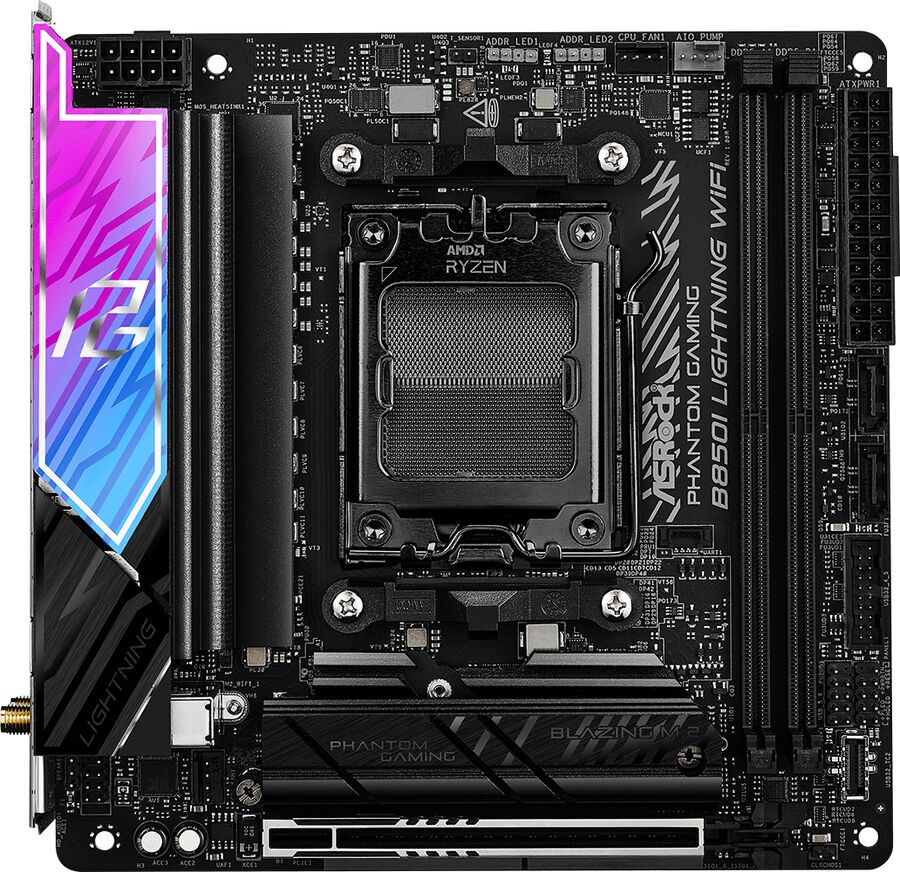
On specifications alone, this is one of the most attractive lower-cost B850 Mini-ITX boards.
ASRock gives it a 10+1+1 power design with 110A smart power stages for VCore, PCIe 5.0 x16 graphics, one Gen5 x4 M.2 slot, another Gen4 x4 M.2 slot, 2.5Gb Ethernet, Wi-Fi 6E and BIOS Flashback.
That covers almost everything required for a compact gaming PC.
The reason it is not one of my three Quick Picks is the history surrounding ASRock AM5 boards and Ryzen X3D processors.
During 2025, GamersNexus tracked a user-reported sample in which ASRock boards appeared disproportionately often among Ryzen 7 9800X3D failure and boot-problem reports.
That investigation did not establish that every ASRock board was defective, and some apparently dead systems were actually recoverable BIOS/boot failures rather than dead CPUs.
The situation has also moved on substantially since those early reports.
ASRock’s February 2026 BIOS 4.10 specifically listed improved memory compatibility and a fix for a boot failure occurring on certain CPUs, and several newer BIOS releases have followed.
How I would approach a new X3D build on this board
Check the BIOS version the motherboard ships with against ASRock’s current support page before you start tuning.
Get the machine stable at normal settings first. Then enable EXPO and any PBO or Curve Optimizer changes one step at a time.
I would also buy from a retailer with a straightforward return policy. The history is a reason for extra diligence—not proof that every B850I Lightning is unsafe.
Buy it if: it is substantially cheaper than the ASUS and Gigabyte B850 alternatives and its feature set fits your system.
Skip it if: the price difference is small enough that you would rather choose the less complicated recommendation.
5. Gigabyte A620I AX
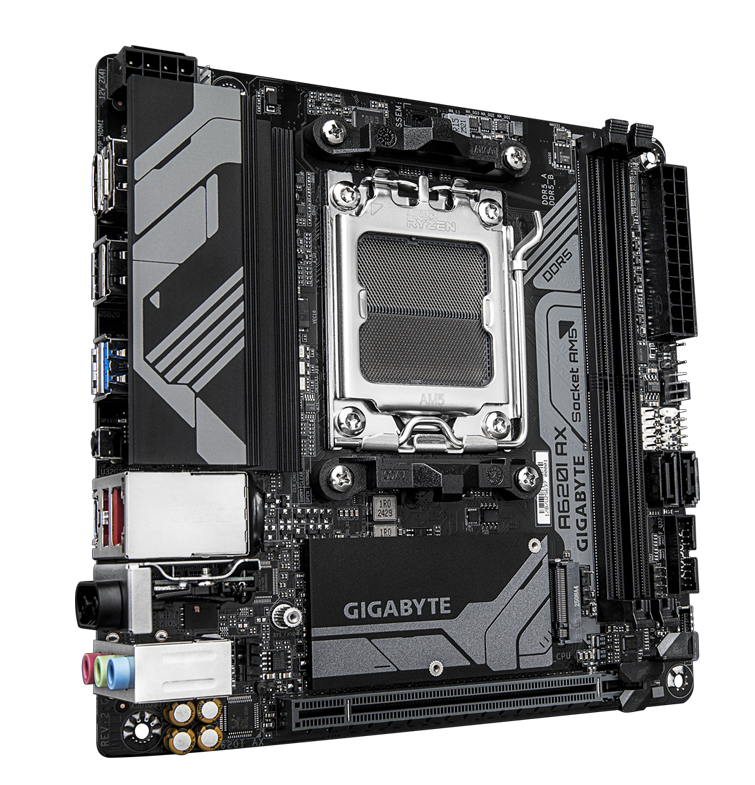
The A620I AX exists for a different kind of Mini-ITX build.
Think Ryzen 5, one NVMe drive, a mid-range graphics card and a small system where the saved motherboard budget goes into the components that actually increase performance.
You still get two DDR5 memory slots, AMD EXPO support, 2.5Gb Ethernet, Wi-Fi 6E, front USB-C and Q-Flash Plus.
Storage is limited to one PCIe 4.0 x4 M.2 connection plus two SATA ports, and the main graphics slot is PCIe 4.0.
A620 also does not provide Ryzen CPU overclocking.
It does support DDR5 memory overclocking through AMD EXPO. Those are separate capabilities.
I would not choose this board for a Ryzen 9 workstation simply because a CPU-support list says the processor can boot. Compatibility and sensible pairing are not the same thing.
Check the exact board revision
Gigabyte has produced multiple A620I AX revisions. CPU support and bundled wireless hardware can vary by revision, so check the revision shown by the retailer and Gigabyte’s corresponding CPU-support page if you are installing a newer Ryzen CPU.
Buy it if: you are building a cost-controlled Ryzen 5 system, one NVMe drive is enough and the saving versus B850 is meaningful.
Skip it if: you want Gen5 expansion, multiple NVMe drives, CPU overclocking or a high-power Ryzen 9 build.
Watch: Best Mini-ITX AM5 Motherboards in 2026
This BC Zone guide walks through the same buying decision in video form, including the ASUS B850-I, ASRock B850I Lightning, ASUS X870-I, Gigabyte B850I AORUS Pro and A620I AX.
B850 vs X870 in a Mini-ITX build
On a large motherboard, a higher chipset can expose more expansion resources across multiple PCIe slots and controllers.
Mini-ITX has only one full-length expansion slot and very limited PCB area, so much of that theoretical expansion advantage cannot be used in the same way.
Choose B850 if…
- The PC is mainly for gaming.
- One or two M.2 drives are enough.
- You want Ryzen CPU and EXPO memory tuning.
- You do not specifically need USB4.
- You would rather put more budget into the GPU.
Choose X870 if…
- You need guaranteed USB4 connectivity.
- You regularly use high-speed external storage.
- Your dock or creator hardware depends on 40Gbps USB-C.
- The extra I/O solves a problem you can identify before ordering.
Neither chipset inherently adds gaming frame rate.
Once both boards can run the same CPU, GPU and memory settings, the better choice is the board whose physical layout and I/O fit the build.
Your Ryzen CPU can change the board’s PCIe capabilities
This catches a surprising number of AM5 buyers.
A motherboard can advertise PCIe 5.0 graphics and Gen5 storage, but the CPU still supplies many of those PCIe lanes.
On the ASUS B850-I, for example, Ryzen 7000 and 9000 desktop processors allow PCIe 5.0 x16 graphics and two Gen5 x4 M.2 slots.
With Ryzen 8000, those connections operate at PCIe 4.0 instead.
The Gigabyte B850I shows a similar pattern: Ryzen 9000/7000 can provide PCIe 5.0 x16, while different Ryzen 8000 variants can reduce the graphics connection to PCIe 4.0 x8 or x4.
Do not read the motherboard specification without reading the CPU footnote
If you are building around an 8000-series APU and also plan to install a discrete graphics card, check the exact CPU’s lane configuration before buying. The chipset name alone does not tell you the final GPU and SSD link speeds.
M.2 placement matters more in Mini-ITX
Two M.2 slots sounds the same on a specification table regardless of where they are located.
In an ITX case, it is not the same.
A rear-mounted SSD can require removal of the motherboard when you want to replace or upgrade it.
A stacked front M.2 assembly can conflict with certain low-profile CPU coolers or make the storage area harder to access.
This is why the ASUS B850-I’s two onboard Gen5 connections are genuinely useful, while the Gigabyte’s rear Gen4 M.2 is something I would plan during the initial build.
Install every rear-mounted SSD before the board goes into the case
Even if you think the second drive can wait, installing it during the original build can save a surprisingly large teardown later.
Do you actually need a PCIe 5.0 SSD in an ITX PC?
No.
Gen5 support is useful platform headroom, but a fast Gen4 NVMe drive remains an excellent choice for gaming and everyday use.
Compact cases also make SSD thermals more important. High-performance Gen5 drives can produce substantially more heat, and the dense heatsink around the front M.2 area may sit very close to the CPU cooler.
Buy Gen5 because your workload benefits from very high storage throughput—not because the motherboard has a Gen5 logo.
Check your case’s front USB-C before buying the motherboard
Modern small-form-factor cases increasingly place a USB-C port on the front or top I/O.
That port requires an appropriate internal motherboard header.
All of the boards above offer a form of front USB-C support, but the available speed differs between models.
If your case’s front USB-C port is important, check both the case specification and motherboard header speed rather than assuming every Type-C connector is equivalent.
When USB4 is actually worth paying for
USB4 is the clearest reason to choose the ASUS X870-I.
Its two rear 40Gbps USB4 ports make sense with:
- fast external NVMe storage,
- high-end USB4 docks,
- creator-oriented capture hardware,
- display and peripheral docks,
- or workflows that regularly transfer very large files externally.
A mouse, keyboard, game controller, normal USB drive and typical gaming peripherals do not justify buying X870 for USB4.
How much VRM do you need in an AM5 Mini-ITX motherboard?
Do not rank these boards by phase count alone.
VRM component quality, heatsink design, airflow, BIOS behavior and CPU workload all matter.
A gaming-focused X3D processor also presents a different sustained load from a Ryzen 9 running hours of CPU rendering.
The ASUS B850-I, ASUS X870-I and ASRock B850I all have substantial power-delivery hardware for compact performance builds.
The Gigabyte A620I AX is deliberately simpler. I would keep that board in the efficient Ryzen 5 / mainstream CPU role where its lower platform cost makes sense.
A CPU being supported does not make the pairing ideal
A BIOS support list answers “will this CPU work?” It does not answer whether you should run a high-power Ryzen 9 under sustained all-core loads on the cheapest, most lightly cooled ITX board.
CPU cooler clearance can decide the motherboard for you
Mini-ITX boards place the CPU socket, memory, VRM heatsinks and M.2 cooling within a few centimeters of each other.
That becomes especially important with low-profile coolers used in very small cases.
A cooler may technically support AM5 and still conflict with:
- a tall M.2 heatsink,
- the VRM heatsink,
- tall DDR5 modules,
- the case side panel,
- or a riser-cable layout.
Check the exact cooler and case combination before treating socket compatibility as proof of physical fit.
Check your CPU cooler and case clearance →
Plan your RAM capacity before you build
Mini-ITX AM5 motherboards have two memory slots.
That is usually an advantage for high-speed DDR5 because you are only loading one DIMM per channel, but it removes the “I’ll fill the other two slots later” upgrade path available on many ATX boards.
For a gaming-first PC, 32GB as 2×16GB is still the configuration I would normally start with.
If you already know your applications need 64GB, buy 2×32GB from the beginning.
For higher-capacity creator systems, use a matched two-DIMM kit validated for your board rather than planning to replace memory immediately after the build.
BIOS Flashback matters more on Mini-ITX
I strongly prefer a Mini-ITX motherboard with a way to update or recover the BIOS without requiring a fully working CPU boot.
ASUS provides BIOS FlashBack on both ROG boards, ASRock provides BIOS Flashback on the Lightning, and Gigabyte provides Q-Flash Plus on both of its boards here.
That matters with AM5 because the socket spans multiple processor generations and a board may require newer firmware for a CPU released after the motherboard itself.
It is also useful because diagnosing a failed boot inside an assembled Mini-ITX PC is far less pleasant than doing the same thing on an open ATX system.
Can A620 use AMD EXPO?
Yes.
AMD distinguishes processor overclocking from memory overclocking.
A620 does not enable Ryzen CPU overclocking, but AMD does list DDR5 memory overclocking and EXPO support for A620.
Gigabyte also explicitly lists EXPO support for the A620I AX.
So the real A620 compromise is CPU tuning, PCIe generation, storage expansion and overall board capability—not an inability to run an EXPO memory profile.
What to avoid when building an AM5 Mini-ITX PC
- Buying by chipset alone. X870 is not automatically better for your build, and A620 is not automatically wrong.
- Ignoring the CPU’s PCIe lane configuration. Ryzen 8000 can change the GPU lane width and PCIe generation exposed by the exact same motherboard.
- Forgetting the front USB-C header. Check that the board can actually drive the port on your case at the speed you expect.
- Buying the cheapest board for a sustained Ryzen 9 workload. Small cases already make VRM cooling harder.
- Installing a rear M.2 drive after the PC is assembled. Do it before mounting the board whenever possible.
- Overpaying for a hot Gen5 SSD that your workload cannot use.
- Checking the motherboard but not the cooler. Low-profile cooler, M.2-heatsink and RAM conflicts are common in dense layouts.
- Assuming the published GPU length is the only case measurement. Thickness, radiator clearance and power-cable room matter too.
Mini-ITX is a system, not a motherboard. The board, GPU, cooler, RAM, storage, riser, PSU and case need to work together.
The AM5 Mini-ITX decision in 30 seconds
High-end gaming
Start with the ASUS ROG Strix B850-I Gaming WiFi. It is the least-compromise B850 choice and gives Ryzen 7000/9000 users two Gen5 M.2 connections.
Better B850 value
Choose the Gigabyte B850I AORUS Pro when it is meaningfully cheaper and one Gen5 plus one Gen4 M.2 slot is enough.
USB4 / creator build
Choose the ASUS ROG Strix X870-I Gaming WiFi when dual 40Gbps USB4 ports solve an actual connectivity requirement.
Lower-cost B850
Consider the ASRock B850I Lightning WiFi only when its price advantage is large enough to justify doing the extra BIOS homework.
Budget Ryzen 5
Choose the Gigabyte A620I AX when one Gen4 SSD is enough and keeping the platform cost down matters more than Gen5 or CPU overclocking.
Continue planning your AM5 build
AM5 Mini-ITX motherboard FAQ
What is the best Mini-ITX AM5 motherboard in 2026?
For most high-end gaming builds, I would start with the ASUS ROG Strix B850-I Gaming WiFi. It combines strong CPU support, two Gen5 M.2 connections with Ryzen 7000/9000, Wi-Fi 7 and excellent BIOS/recovery features without making USB4 mandatory.
Is B850 or X870 better for Mini-ITX?
B850 is the better starting point for most gaming PCs. X870 becomes more attractive when guaranteed USB4 connectivity is genuinely useful. Neither chipset inherently increases gaming FPS.
Does the ASUS ROG Strix B850-I have two Gen5 M.2 slots?
Yes with Ryzen 7000 and Ryzen 9000 desktop processors. ASUS specifies both M.2 connections at PCIe 5.0 x4 with those CPUs. Ryzen 8000 changes both to PCIe 4.0 x4.
Does the ASUS X870-I have two Gen5 M.2 slots?
No. It uses one Gen5 x4 M.2 connection and one Gen4 x4 connection. Its major advantage over the B850-I is USB4 and its creator-oriented connectivity, not a faster second SSD slot.
Does B850 support CPU overclocking?
Yes. AMD enables both Ryzen processor overclocking and DDR5 memory overclocking on B850.
Does A620 support AMD EXPO?
Yes. A620 does not enable Ryzen processor overclocking, but AMD lists DDR5 memory overclocking and EXPO support for A620.
Is the Gigabyte A620I AX enough for a Ryzen 7 7800X3D?
A compatible revision and BIOS can support many AM5 CPUs, but I would normally reserve this board for more cost-conscious, efficient builds. A B850 board provides a better feature and expansion foundation for a high-end X3D system when the price difference is reasonable.
Is the ASRock B850I Lightning WiFi safe to buy?
There is no evidence that every B850I Lightning is defective. However, ASRock AM5 boards had a notable history of 9800X3D failure and boot reports in 2025, so I would check the current BIOS situation and validate a new X3D build at stock settings before enabling memory or CPU tuning.
Do I need USB4 on a gaming PC?
Usually not. USB4 becomes valuable for fast external NVMe drives, docks, capture devices and creator hardware. Ordinary gaming peripherals do not require 40Gbps USB4 bandwidth.
How many M.2 slots should an ITX motherboard have?
Two is the target I prefer for a performance build. One can be enough for a budget system if you buy a sufficiently large SSD initially.
Does a rear M.2 slot run hotter?
It can receive less direct airflow depending on the case, but the bigger issue is accessibility. In many compact cases, reaching a rear M.2 slot means removing the motherboard.
Do I need PCIe 5.0 for my graphics card?
No. PCIe is backward compatible and current GPUs can operate on appropriate PCIe 4.0 connections. PCIe 5.0 provides platform headroom but is not a requirement for a fast gaming system.
Why does Ryzen 8000 change PCIe support?
The processor supplies many of the motherboard’s high-speed PCIe lanes. Ryzen 8000 desktop APUs expose a different lane configuration from Ryzen 7000/9000, so the same motherboard can operate its GPU and M.2 connections at different speeds depending on the CPU installed.
Can Mini-ITX boards run a Ryzen 9 9950X3D?
Stronger Mini-ITX boards can support high-end Ryzen 9 processors, but the motherboard is only part of the thermal equation. CPU cooling and case airflow become especially important in a very small enclosure during sustained workloads.
How much RAM can an AM5 Mini-ITX board use?
The current boards here provide two DDR5 DIMM slots, and several support up to 128GB with compatible modules and BIOS versions. Always check the exact board’s current memory-support list before buying a very high-capacity kit.
Specification and research references
Motherboard specifications were checked against current AMD, ASUS, Gigabyte and ASRock documentation. BIOS-related discussion also uses ASRock’s current support history and independent reporting on the earlier Ryzen X3D boot/failure reports.
- AMD — AM5 chipset specifications
- ASUS — ROG Strix B850-I Gaming WiFi specifications
- Gigabyte — B850I AORUS Pro specifications
- ASUS — ROG Strix X870-I Gaming WiFi specifications
- ASRock — B850I Lightning WiFi specifications
- ASRock — B850I Lightning WiFi BIOS history
- GamersNexus — ASRock / Ryzen 7 9800X3D investigation
- Gigabyte — A620I AX specifications
- BC Zone — Best Mini-ITX AM5 Motherboards 2026

- Best GPUs for Small Form Factor Builds in 2026 - August 27, 2026
- Best Mini-ITX AM5 Motherboards in 2026 - August 27, 2026
- Best Micro ATX AM5 Motherboards in 2026 - August 27, 2026